A 3d product viewer is an interactive player embedded directly inside an ecommerce product gallery that lets shoppers rotate a product 360 degrees and view it from above and below, zoom in on surface textures and ports where the model's detail allows, trigger animations, and launch an Augmented Reality (AR) preview on their phone at true scale when the model is built to the product's real dimensions.
For store owners, adding a 3D product viewer is not about replacing your product photos. It is about completing your product gallery on items where flat images leave shoppers guessing about depth, build quality, rear connections, or physical size.
Here is a practical buyer's guide to how a 3D product viewer differs from static photos and 360° turntable spins, what you actually need to put one on Shopify or WooCommerce, and how to keep it fast on mobile devices.
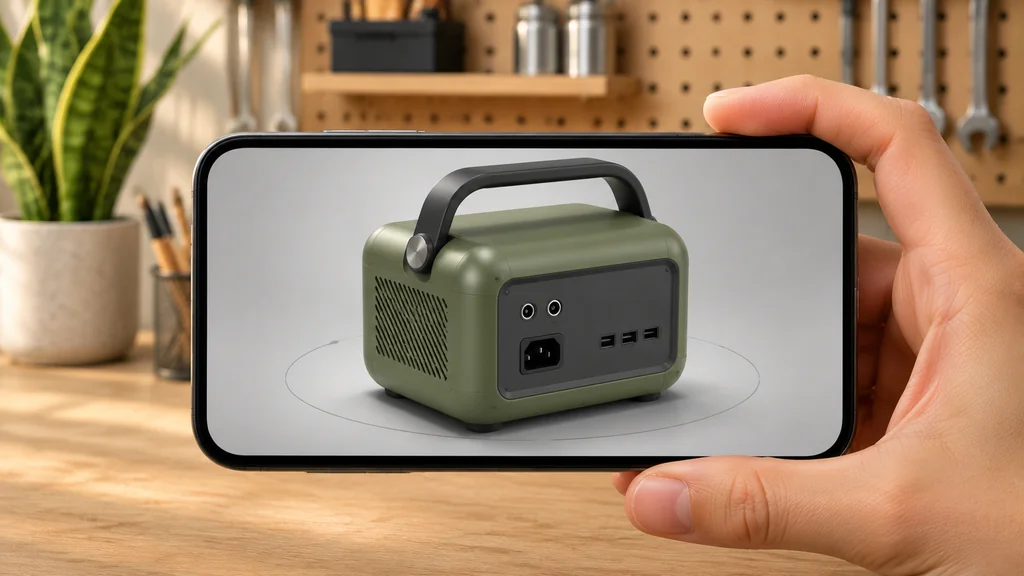
3D Product Viewer vs. Static Photos vs. 360° Turntable Spins
When evaluating visual upgrades for your product pages, it is easy to confuse three different formats: static 2D studio photos/renders, 360° turntable photo spins, and a true 3D product viewer.
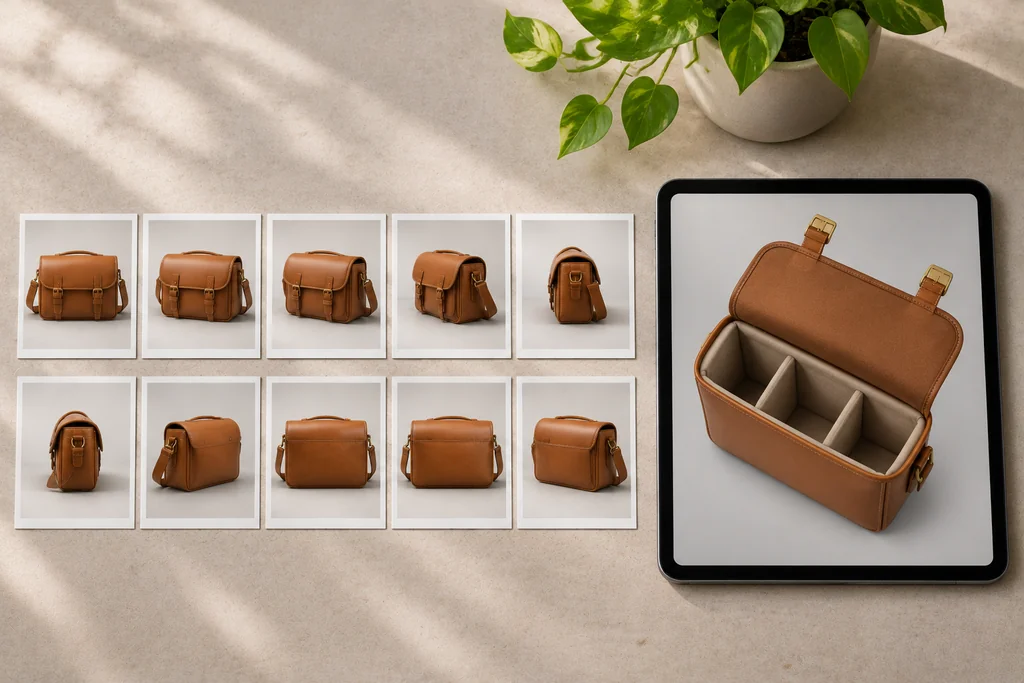
As explained in Modelry's 3D viewer guide and PhotoRobot's comparison of 360° photography and 3D models, a 360° spin viewer stitches together 24, 36, or 72 flat photographs taken on a motorized turntable.
A true 3D product viewer (powered by WebGL — the browser's 3D display technology — and standard Khronos glTF 2.0 / .glb files) loads actual three-dimensional geometry and physically based rendering (PBR) materials — materials that respond to light in a realistic way — into the browser.
| Feature / Business Question | Static 2D Photos or 3D Renders | 360° Turntable Photo Spin | Interactive 3D Product Viewer (.glb) |
|---|---|---|---|
| First-Impression Speed (LCP) | Fastest — a compressed WebP or JPEG photo usually serves as the main product image. | Moderate — loads a sequence of 24 to 72 image frames. | Fast when deferred — shows a 2D poster image first and loads the 3D file (Shopify recommends around 4 MB) only when the shopper taps it. |
| Viewing Freedom | Fixed to the 4–8 angles in your gallery. | Left-to-right horizontal spin only (unless shot on a multi-row rig). | Full 360° orbit (top, bottom, back, inside if modeled, and macro zoom). |
| Light & Material Response | Locked into the static image pixels. | Locked into the studio light of each frame. | Real-time PBR — specular highlights roll naturally across metal, leather, and glass as you rotate. |
| Mobile AR ("View in Room") | No | No | Yes, when set up — hands off to Apple AR Quick Look (.usdz) and Android Scene Viewer (.glb) when the model is AR-ready and the shopper's device supports AR. |
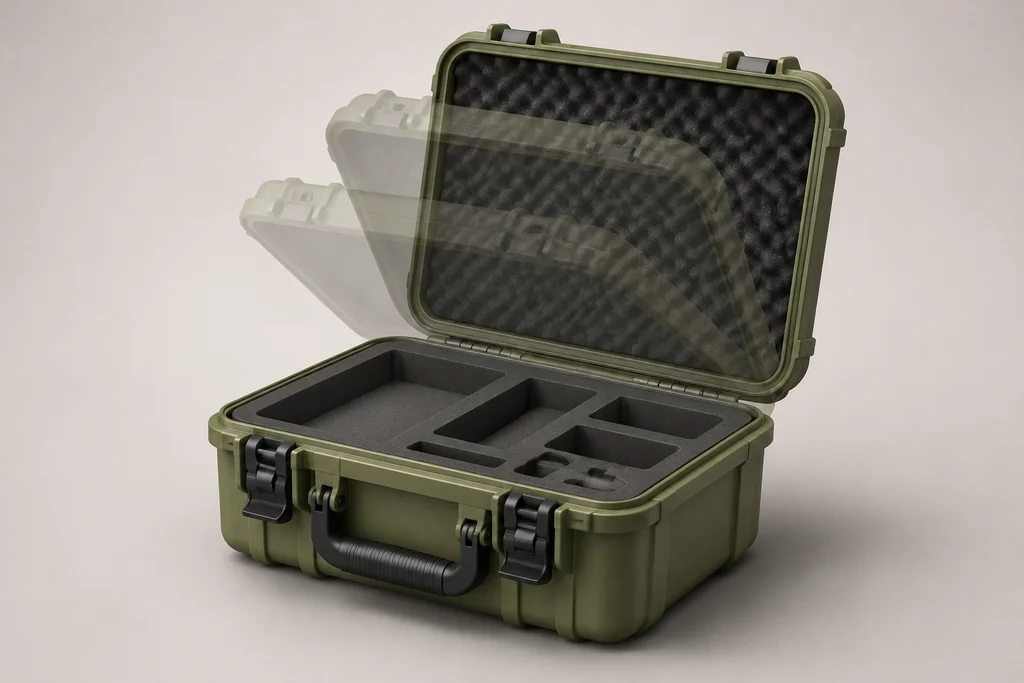
| Moving Parts & Hotspots | Requires a separate video or graphic callout card. | Cannot animate individual parts independently. | Yes, when built in — can support clickable 3D hotspots and triggered animations (e.g., opening a lid or folding a frame), but these need to be built into the model and viewer setup; they are not automatic in every .glb file. |
| Production Effort & Maintenance | Lowest if the product already exists to photograph; new angles need a new shoot or render. | A turntable shoot per product; reshoot if the product or finish changes. | Highest: the product must be modeled, textured, and optimized, and the model needs updating when the product's design or finish changes. |
| Best Role on the Product Page | Hero thumbnail, lifestyle context, and fast skimming. | Products where seeing the outside from all sides is enough and AR or deep inspection is not needed. | Deep inspection, spatial reassurance, and AR placement right beside your 2D photos. |
None of these formats wins everywhere. If a product is simple, inexpensive, and easy to understand from a few angles, good photos are usually enough. If shoppers mainly need to see the outside shape from all sides, a 360° spin can do that without building a 3D model. A 3D viewer earns its extra production effort when shoppers need to inspect details, understand size, open or move parts, or place the product in their room — and even then, some materials, especially highly reflective or transparent ones, can be harder to represent accurately in a real-time model than in a photograph.
Why You Need Both Photos and a 3D Viewer (Not One or the Other)
A common mistake store owners make is thinking they must choose between studio imagery and a 3D product viewer. In reality, high-converting product pages use them together for two different stages of the buyer's decision:
- Photos and static 3D renders lead the first impression: According to Baymard Institute's product page UX research, 56% of users' very first action on arriving at a product page is to explore the product images. That makes your main photo or render the most important visual on the page, and the reason it should load first.
- The 3D viewer wins the inspection stage: Once a shopper is interested, they want to check what photos cannot show clearly: the back panel and ports, the underside, how a lid or hinge opens, or how the finish catches the light. A 3D viewer lets them rotate, zoom, and open the product themselves instead of hoping the right photo exists.
When shoppers get that level of control, engagement tends to rise. In a case study published by its 3D vendor Modelry, lighting and home hardware brand Buster + Punch reported a 50% increase in time spent on product pages after adding 3D viewers and AR. On Shopify, handbag brand Rebecca Minkoff found that shoppers who interacted with a 3D model were 44% more likely to add the item to their cart (Shopify's Rebecca Minkoff case study). Both are brand-reported comparisons rather than controlled tests, so treat them as direction, not a forecast.
Also, UX placement matters: Baymard Institute's research on embedding product page videos reported that 35% of sites get product video placement wrong, and found that users expect videos and 360° views to sit inside or right next to the main image gallery. When sites used tabs to separate video thumbnails from image thumbnails, a third of tested users had trouble with the design. Put your 3D viewer thumbnail inside the main gallery, not further down the page or behind a tab. Placement matters partly because not every visitor will open the viewer at all — which is another reason your photos stay primary.
What You Need to Add a 3D Product Viewer to Your Store
To put a working 3D product viewer on your site, the technology itself has two core components: the viewer player on your store and an optimized 3D asset package for each product. Launching a customer-ready experience takes a few checks on top of those two: confirming your theme supports the viewer, setting how the model loads, testing on the phones your shoppers actually use, setting up AR if you want it, deciding how variants are handled, and checking the model against the real product for accuracy.
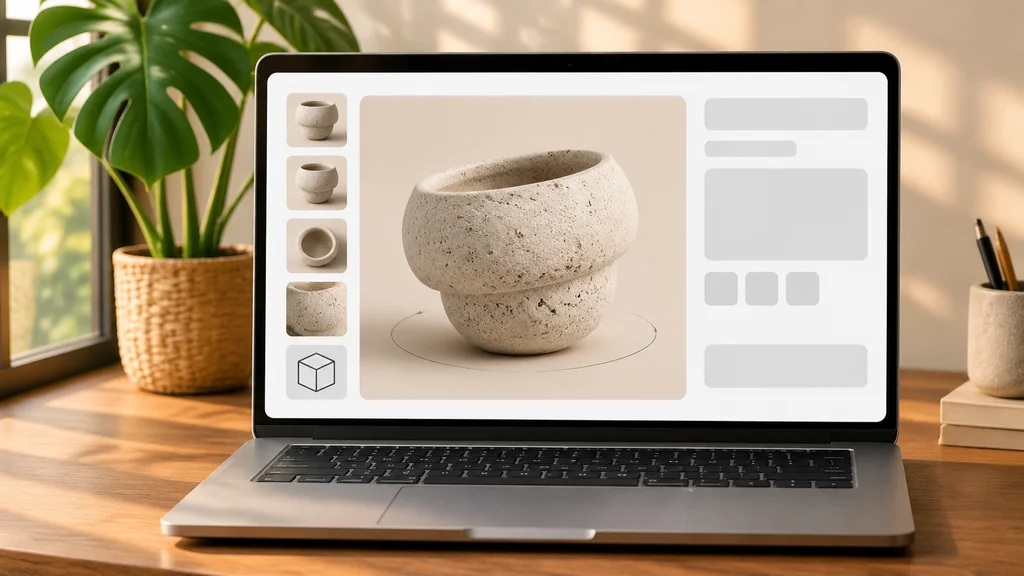
1. The Viewer Player (Shopify, WooCommerce, or Custom)
You do not need to build a 3D rendering engine from scratch, and for standard single-product viewing, you don't even need a paid monthly SaaS subscription:
- On Shopify: Shopify-built Online Store 2.0 themes (such as Dawn) and Horizon themes include a native 3D product viewer out of the box powered by Google's
<model-viewer>andShopify-XR; third-party Online Store 2.0 themes may need an update or custom work to display models the same way. As documented in Shopify's product media guide, you simply upload your.glbfile intoProducts > Mediain the Shopify admin, and Shopify automatically renders the 3D viewer and generates the.usdzfile for iPhone AR. - On WooCommerce / WordPress: You can embed Google's
<model-viewer>directly in a custom HTML/shortcode block, or use established WordPress plugins such as AR for WooCommerce or 3D Viewer that add a 3D viewer to your WooCommerce product gallery. - On Custom, Headless, or BigCommerce Storefronts: Google's open-source
<model-viewer>web component drops into any HTML template for free under the Apache 2.0 license, giving you full control over camera orbit limits, studio HDR lighting, poster images, hotspots, and mobile AR modes (ar-modes="webxr scene-viewer quick-look").
2. The 3D Asset Package (.glb + .usdz)
The viewer player is just an empty frame until you feed it a clean 3D file. Specifically, your store needs a .glb file—the compact binary container of the Khronos glTF 2.0 standard—and, if your platform does not auto-convert it, a companion .usdz file for Apple devices. (If you are new to the format, read our plain-English guide on what a GLB file is for web 3D delivery.)
How to Keep Your 3D Viewer Fast and Stable on Mobile Phones
The number-one reason store owners hesitate to add a 3D product viewer is fear of slowing down mobile pages or crashing mobile Safari.
Both risks are real, and they come from two different problems. The first is download size: as noted in Compress GLB's guide to Shopify 3D models, a raw 20 MB .glb file takes roughly 16 seconds to download on a 10 Mbps mobile connection. The second is memory: once downloaded, compressed textures are unpacked into the phone's GPU memory, so a file that looks small on disk can use far more memory than its size suggests, especially with several large textures. We explain this memory trap in our technical note on why a small GLB can still use too much GPU memory.
To help keep your 3D product viewer fast and protect your Google Core Web Vitals:
- Load the 3D model only when the shopper asks for it: Show a lightweight 2D poster image in the viewer first, and download the
.glbonly when the shopper taps the 3D thumbnail or "View in 3D."<model-viewer>supports poster images and delayed loading out of the box, so this needs settings, not custom engineering. - Keep the
.glbaround 4 MB (and well under 15 MB): Follow Shopify's 3D model guidelines: textures no larger than2048 × 2048 pxand polygon counts kept as low as the product's detail allows. Smaller parts can usually use smaller textures, and packing Ambient Occlusion, Roughness, and Metalness into a single texture (an ORM map, which the glTF standard supports) saves both file size and memory. Shopify automatically optimizes models larger than 15 MB. Be clear about what that 15 MB figure is: it is an optimization threshold, not Shopify's upload limit. Shopify accepts 3D model uploads up to 500 MB — but a file anywhere near that size is far too heavy for a product page, which is why around 4 MB remains the working target. - Inspect every file before uploading: Before we deliver any
.glbto a client—or if you want to check an existing file yourself—you can drop it into our free browser-based GLB Viewer on 3D Vision Art to verify its exact file size, triangle count, texture resolutions, and material channels in seconds.
Frequently Asked Questions About 3D Product Viewers
What is the difference between a 3D product viewer and a 3D product configurator?
A 3D product viewer displays a single product state so the shopper can rotate, zoom, inspect features, and view it in AR. A 3D product configurator goes further: the shopper changes the product itself (colors, materials, sizes, or components), and the 3D model, selected options, and often the price update together. If you sell a product in a few fixed colorways, a viewer is usually enough; if shoppers build their own version, you need a configurator.
Does Shopify charge extra to use a 3D product viewer?
No. Native 3D and AR viewing is included on Shopify plans using Online Store 2.0 or Horizon themes, with no separate 3D app fee (Shopify Product Media Types). Check one limit before a large rollout: the number of videos and 3D models a store can host depends on your Shopify plan, and each product can hold up to 250 media files. Your main cost is creating the 3D models, plus updates when a product's design or finish changes.
How does a 3D product viewer work for shoppers on a desktop computer?
On a desktop or laptop, shoppers click and drag with their mouse or trackpad to orbit 360 degrees around the product and scroll to zoom in on fine details.
Can we link different 3D models to different color variants on Shopify?
No, not natively. According to Shopify's Help Center, product variants support only one image each and cannot be linked to 3D models or videos. To show a different 3D model for each color, you need a variant-media app or custom theme code. Another option is a single 3D model that stores every colorway as a material variant (the glTF KHR_materials_variants extension), which a custom <model-viewer> setup can switch when the shopper picks a color; Shopify's native viewer does not switch materials on its own.
What do we need to send a studio to get a .glb file for our viewer?
Send your product's exact height, width, and depth dimensions, either your CAD files (if available) or clear multi-angle photos (front, back, sides, top, and bottom), vector files for any logos or labels, and close-up photos of your materials.
Ready to Put Fast, Photorealistic 3D Models Into Your Store's Viewer?
If you want this done for your products—so you can drop validated, lightweight .glb and .usdz files straight into Shopify, WooCommerce, or <model-viewer>, built to stay light on mobile and color-checked against your product references—explore our 3D & AR Assets for Ecommerce service. Every asset is optimized and tested for real-world web performance before handoff.
Tell us how many products you want to put in 3D.
Get a Free Quote ↗