The delivery problem is not only the USDZ file
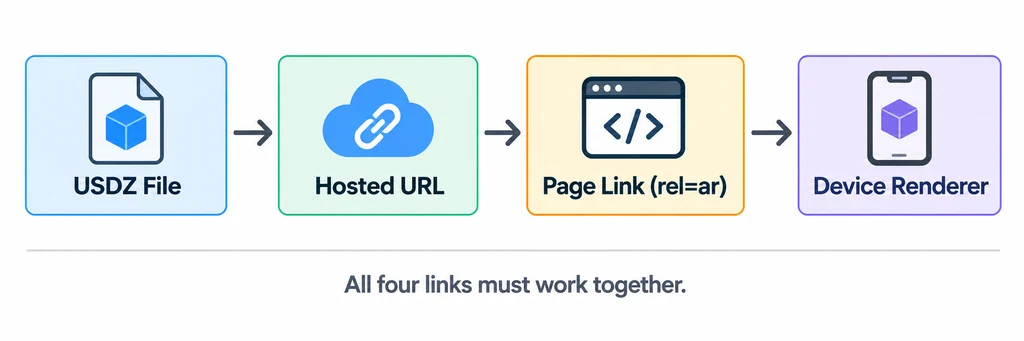
Apple AR Quick Look can preview USDZ objects on iOS and iPadOS. A web page can offer that experience through an anchor with rel="ar" pointing at a USDZ asset. That makes the final result a small delivery chain: the file, its hosted URL, the page link, and the device renderer all need to work together.
Treat the USDZ export as a release candidate, not as a final render. A successful DCC export says that a file was produced. It does not prove that the model opens from the production URL, appears at credible scale, or communicates the product clearly in a real room.
Start with the intended product state
Write down the exact configuration that the AR link represents. This matters when a product page also has finish options, accessories, or a web viewer. The title, selected finish, visible accessories, and AR asset should agree. If a chair page shows a walnut finish, sending a generic gray chair into Quick Look creates an avoidable trust problem.
Choose one default view that is useful before placement. Put the asset close to the expected origin, remove construction helpers, and confirm that the ground contact makes sense. AR is not a neutral gallery: a model that starts far above or below its expected contact point makes scale and placement harder for the visitor to judge.
Validate the asset before linking it

Use Apple’s USD authoring guidance to check the package and run the available validation tools in the export workflow. Then inspect the file in the target renderer. Validation catches structural problems; the renderer inspection catches visual and interaction problems.
Check these items together:
The package opens as USDZ and its required resources are contained as expected.
The object is authored at a credible real-world size. Scene conventions and scale should be agreed before export, rather than corrected by a page-level guess.
Material names and product finish choices remain understandable to the team reviewing the result.
The model has no hidden test geometry, cameras, or duplicated parts that change the visual result or increase delivery cost.
The object has a believable contact with the real environment without relying on a baked floor shadow that belongs to a studio render.
Do not approve solely from a desktop viewport. Test at least one actual iPhone or iPad that represents the release audience.
Test the production link, not a local file
Quick Look web delivery is a link integration. Put the candidate USDZ on the actual HTTPS path, connect it using the production markup pattern, and open that page on a device. This exposes issues that a local preview cannot: incorrect content paths, CDN rules, redirects, authentication, and a stale cached asset.
During the check, test both the first tap and the return route. The visitor should be able to understand what the action does, open the AR view, inspect the item, and return to the same product context without losing their selected variant.
Make the link and scale checks explicit
A minimal Quick Look link includes a thumbnail inside an AR anchor:
<a rel="ar" href="/assets/product.usdz#allowsContentScaling=0">
  <img src="/assets/product-poster.webp" alt="View this product in AR">
</a>
The scale-control fragment is appropriate when the product experience should prevent user resizing. It does not calibrate the asset or remove tracking error. Check the markup and behavior against Apple's Quick Look guidance.
Serve the actual USDZ response with Content-Type: model/vnd.usdz+zip. Check that the URL returns the asset rather than an HTML login page or missing-file response. Test access from the receiving application; a page's authenticated session does not by itself establish that an external handoff can fetch the file.
USD uses stage-level metersPerUnit metadata. It does not require every scene to set that value to 1. The OpenUSD units documentation describes how to interpret fully transformed dimensions. Compare the resulting physical width, height, and depth with an approved reference. Also verify the stage's up axis and contact plane rather than assuming that every USD scene uses Y as up.
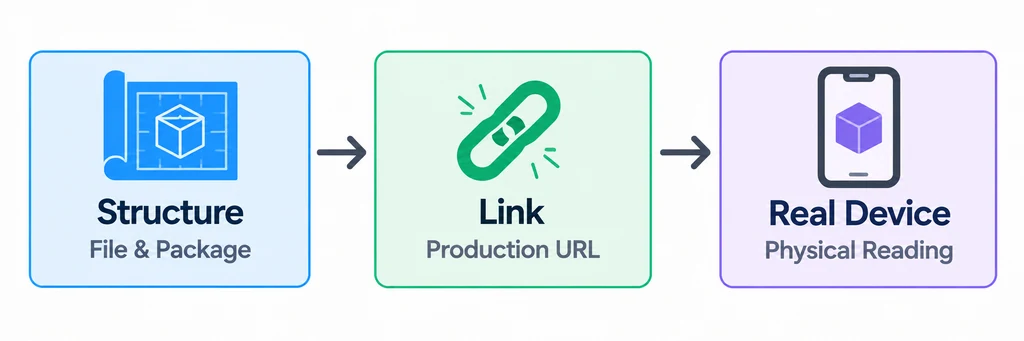
Keep three separate results in the release record: package validity, successful hosted delivery, and physical-device appearance. None substitutes for the other two.
Review the visual result in a difficult room
A white studio background hides weak separation. Test a pale product against a pale wall, a dark product in mixed light, and a reflective finish near windows. These are not pass or fail tests for physically perfect reflections. They reveal whether the product still has readable edges, finish cues, and proportions.
If the result needs a lighting environment choice, make it an explicit art direction decision. Apple provides guidance for specifying a lighting environment in AR Quick Look. Record the chosen environment and the reason for it so the result does not drift between exports.
Make approval reproducible
A useful release record contains the USDZ filename or immutable version, page URL, device and OS used, selected product configuration, validator result, and a short note on any accepted limitation. That record turns a one-off visual sign-off into a repeatable delivery gate.
The core rule is simple: validate structure, then validate the deployed link, then validate the physical reading of the product on a real device. USDZ is only one part of the product AR experience.