Alpha is a rendering decision
An alpha channel in a texture does not define how a glTF material renders. The core material model uses alphaMode to interpret alpha, with OPAQUE, MASK, and BLEND as the available choices.
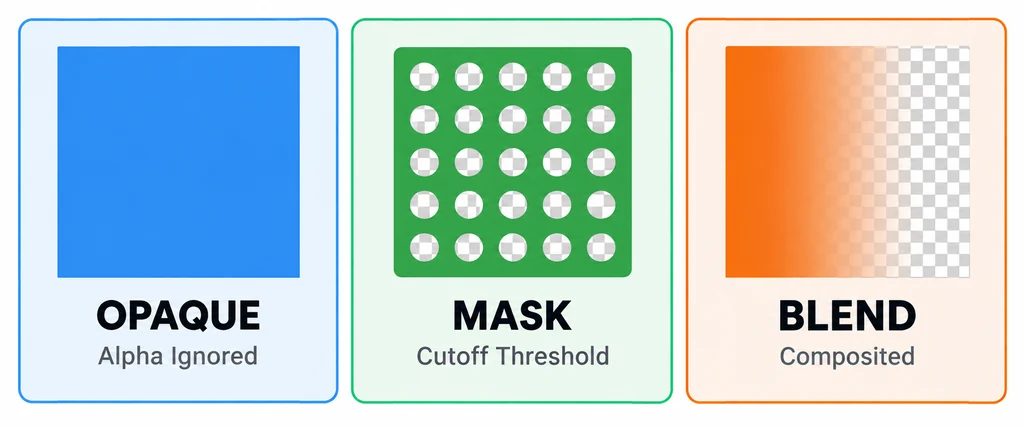
Choose alpha mode from the material’s intended physical and visual role.
The setting affects appearance and runtime work. Make the choice from the part’s role, then test it in the target viewer. Do not choose BLEND only because a texture happens to include transparency information.
Use OPAQUE for solid parts
OPAQUE ignores alpha. It is the right default for solid painted metal, plastic, wood, ceramic, and most product surfaces. It prevents accidental holes caused by unused alpha data in an exported image.
Inspect base-color textures for stray alpha channels before export. If a solid object is unexpectedly see-through, investigate material configuration before changing the lighting.
Use MASK for hard cutouts
MASK makes pixels fully visible or fully invisible according to alphaCutoff. In product work, use it for a perforated grille, punched pattern, or decal with crisp edges.
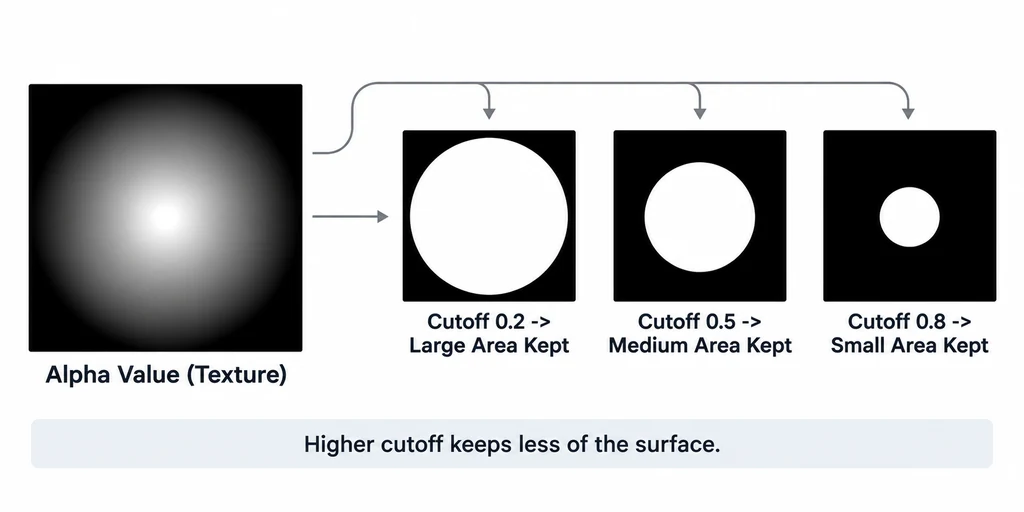
A higher cutoff retains a smaller opaque area from the same alpha source.
A mask is not a soft fade. Review it both close to the camera and at a distance. An edge that looks clean in a still can shimmer or disappear during motion if its cutoff and texture resolution are poorly matched.
Use BLEND for genuine partial coverage
BLEND composites the material with the background. Use it for genuine partial coverage such as thin tinted plastic, a soft fabric edge, or a translucent label. It is not a substitute for physically plausible glass.
Three.js documents transparency sorting limitations, including cases where per-object sorting is insufficient for intersecting or layered transparent geometry.
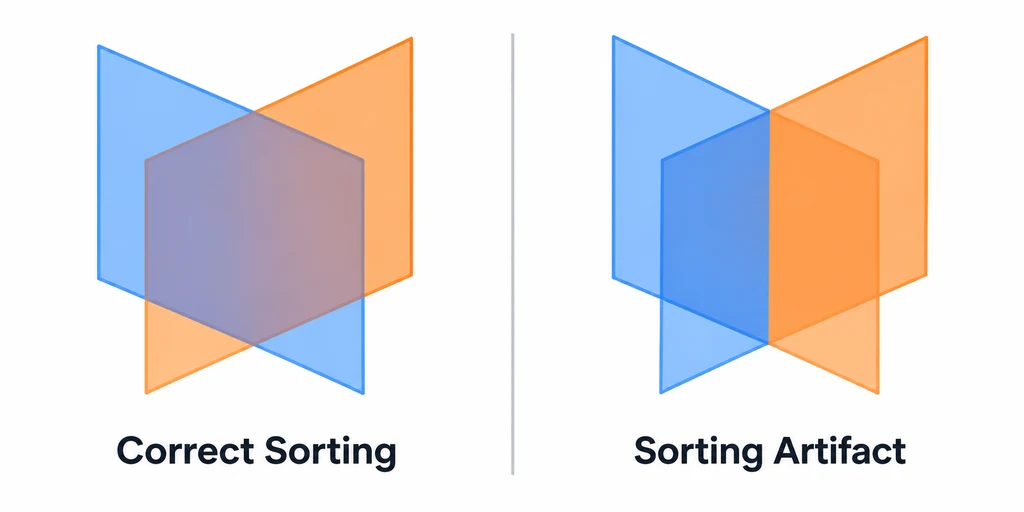
Rotate around layered transparent parts to expose sorting artifacts.
Rotate around the part, test light and dark backgrounds, and inspect overlaps with other transparent pieces in the shipping renderer.
Diagnose depth behavior without hiding the cause
| Mode | Coverage behavior | Review focus |
|---|---|---|
| OPAQUE | Alpha does not remove the surface. | Unexpected transparency should be traced to another setting or shader path. |
| MASK | Fragments pass or fail the cutoff. | Thin features and mip-filtered edges at distance. |
| BLEND | Partial coverage is composited. | Sorting, intersections, and layered surfaces. |
Depth-test and depth-write settings are renderer implementation details to inspect in the deployed path, not glTF properties to copy blindly into every material. Changing renderOrder can help a known arrangement but cannot solve arbitrary intersecting transparent geometry.
For a perforated grille, inspect motion at several distances before changing alphaCutoff. Alpha-to-coverage can be an implementation-specific option with suitable multisampling, but it is not a universal core-glTF setting.
For refractive glass, evaluate supported transmission, IOR, and volume features separately. An alpha-blended approximation should be reviewed as an approximation, with its limitations recorded.
Review the material in its shipping environment
Use the same environment map, tone mapping, camera range, and viewer renderer that customers will see. Test an opaque and a high-contrast background, then inspect the exported material data so the approved behavior is explicit.
The best alpha mode is the least complex mode that produces the intended product reading. Transparency should be a deliberate material decision, not an export side effect.