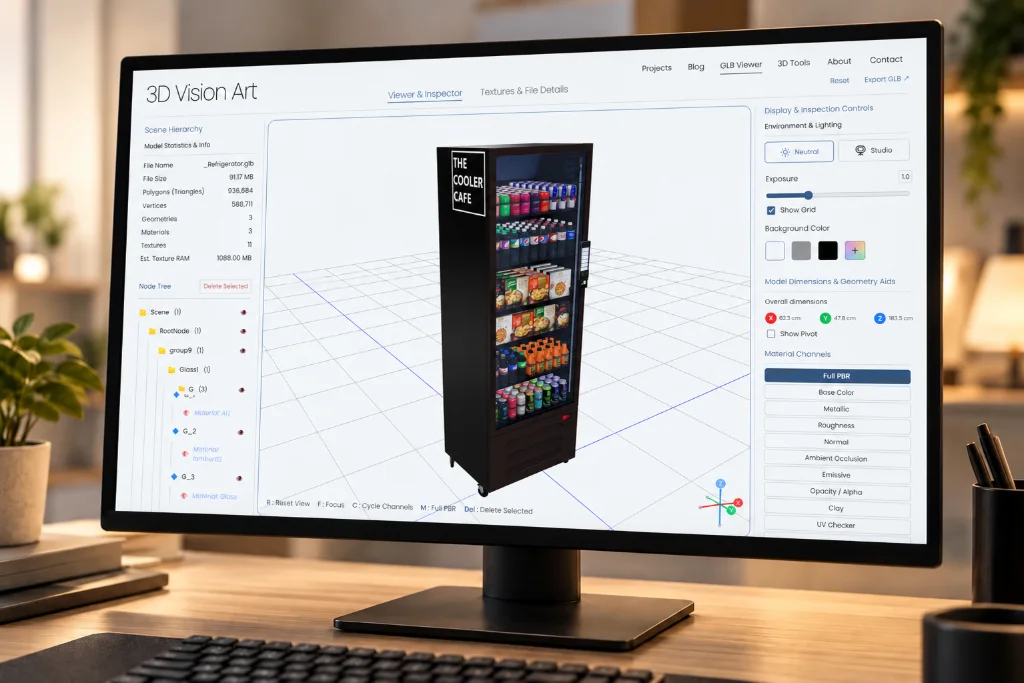
Define the task first. The goal is access to product information, not replication of every mouse gesture through a complicated keyboard shortcut.
Expose the inspection tasks as controls
Provide clear controls for the actions the experience supports. Use meaningful names and standard interaction behavior where possible. The W3C keyboard guidance addresses operability through a keyboard interface.
Offer preset views when they communicate the product more clearly than fine-grained movement. Keep essential dimensions and feature descriptions available as text rather than only inside the canvas.
Test the complete purchase-relevant task. A user who can rotate the model but cannot choose the required finish still lacks access to part of the experience.
Make focus visible and predictable
Move through the controls using only the keyboard. Check their order, visible focus, and names. Ensure that opening a detail panel does not leave focus hidden behind it or trap the user unintentionally.
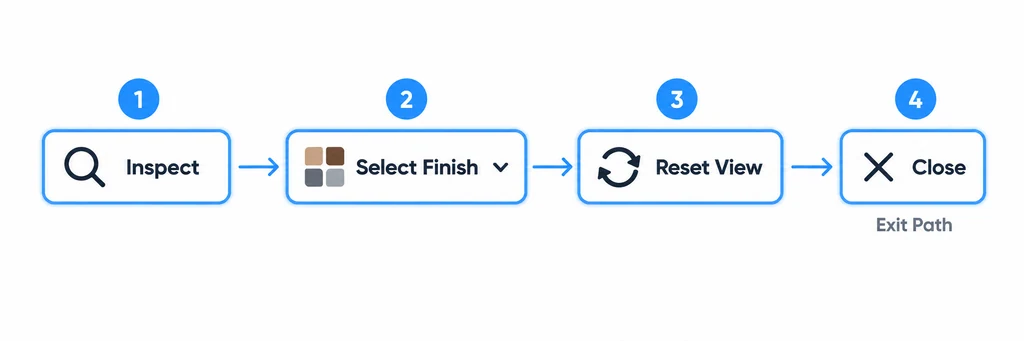
Do not intercept navigation keys globally. Scope viewer-specific behavior to the relevant focused control and preserve a clear exit path.
When a model loads or changes, avoid moving focus merely because a new object appears. Announce meaningful status through the page's accessible interface without forcing the user to restart navigation.
Offer a restrained motion path
Respect the user's reduced-motion preference and provide control over optional automatic movement. W3C's animation-from-interactions guidance addresses disabling nonessential interaction-triggered motion under that criterion's scope.
Replace a sweeping camera transition with a direct view change when appropriate. Preserve the product information conveyed by essential motion through another useful presentation, such as labeled states.
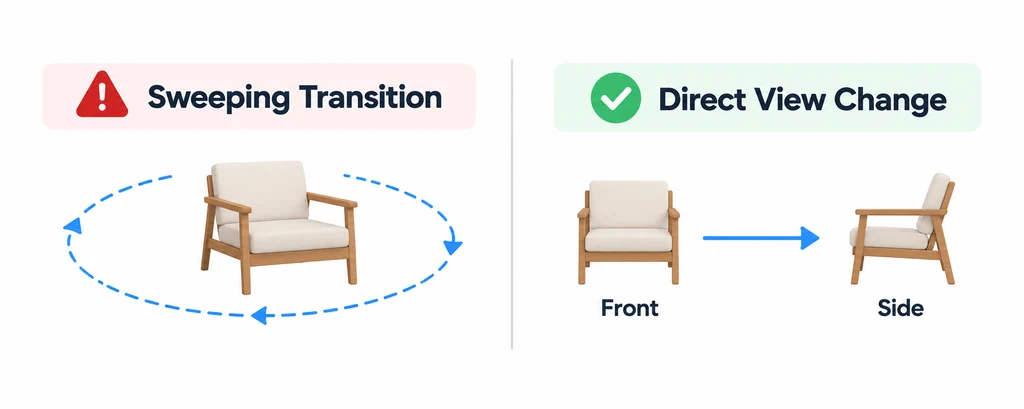
Review autoplay rotation separately from user-triggered motion. Do not assume that satisfying one behavior establishes compliance with every motion-related requirement.
Apply the preference to the actual interaction
Read prefers-reduced-motion through CSS or matchMedia and handle changes where the application supports live preference updates. Use the preference to reduce nonessential motion, such as autoplay orbit or a long camera sweep. A direct switch between labeled views can preserve the information without the same movement.
| Task | Keyboard route | Reduced-motion behavior |
|---|---|---|
| Inspect another side | Named view buttons or scoped rotation controls. | Direct view change or a restrained transition. |
| Choose a finish | Standard, named selection controls. | Update the material without decorative camera movement. |
| Open a feature description | Focusable control with a clear name. | Keep text readable without an animated reveal requirement. |
| Leave the viewer | Normal tab order and an explicit close action where needed. | Preserve the same exit path. |
Choose shortcuts only when their scope and instructions are clear. Do not capture arrow keys across the whole page or make a screen-reader user enter a canvas solely to obtain dimensions already available as text. Check autoplay, interaction-triggered animation, and focus behavior separately because they answer different accessibility requirements.
Test tasks rather than checking a box
Ask a reviewer to identify a feature, change a finish, inspect another side, and return to the default view without a pointer. Repeat with reduced motion enabled.
Check focus after loading failures and after returning from AR. Test a narrow layout where controls may move or collapse.
Document the tested tasks, browser, and assistive setup. Fix failures and repeat the same sequence. These checks improve a defined interaction but do not constitute a complete accessibility audit or a claim of legal compliance.
Keep accessibility behavior in the regression plan. A new loading overlay, shortcut, or animation can break a previously usable path even when the model itself is unchanged.