Define the customer-facing animation first
An animation in a product viewer must answer a clear customer question. It can open a lid, reveal an exploded view, demonstrate a fold, show a color transition, or present a product turntable. Start by naming that action and defining its beginning, end, trigger, and reset behavior.
Do not export every timeline experiment as a customer-facing clip. Extra clips make a delivery package harder to test and harder for the application to map to controls. Keep the set small and name each clip by its purpose.
Understand the glTF animation model
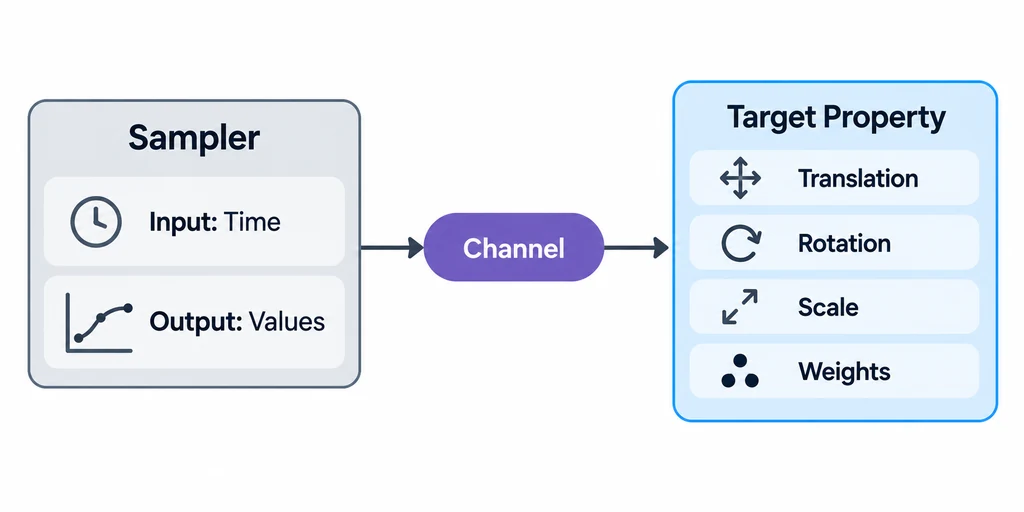
In glTF 2.0, an animation contains channels and samplers. A channel connects a sampler to a target property. A sampler supplies the input times and output values. The target can be a node's translation, rotation, or scale, or a mesh's morph-target weights. Khronos glTF 2.0 specification: animations
This model separates the motion data from the property that receives it. When an animation fails in a viewer, check both sides. Confirm that the sampler has valid time and value accessors. Then confirm that the channel targets the intended node or morph weights.
Animate transforms and morph targets deliberately
Translation, rotation, and scale belong to nodes. If a product part rotates around the wrong place, the issue is often the node hierarchy or pivot placement rather than the animation curve. Put the pivot at the hinge, dial center, or mechanical axis before baking or exporting the animation.
Morph-target weights are useful when the mesh must change shape, such as a flexible cover, a button press, or a controlled deformation. They are not a replacement for rigid mechanical motion. Use node transforms for rigid parts and morph targets for shape change. The glTF specification defines animation targets for node transforms and morph-target weights. Khronos glTF 2.0 specification: animation targets
Choose interpolation that matches the intended motion
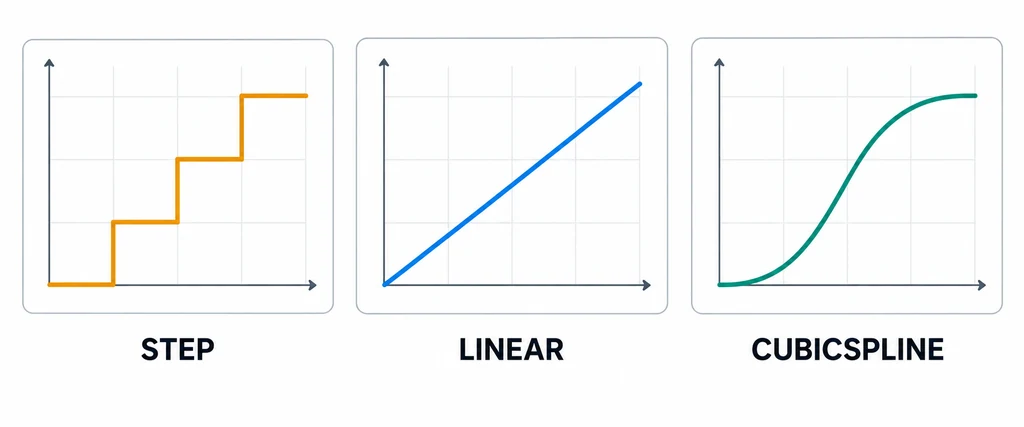
glTF animation samplers support LINEAR, STEP, and CUBICSPLINE interpolation. Khronos glTF 2.0 specification: animation sampler interpolation
Use STEP when an eligible animated property should hold its value until the next key. Core glTF animation does not define a general visibility track. Use LINEAR for interpolation between successive keys. Uneven key spacing or values can still produce changing speed across the full clip. Use CUBICSPLINE only when the source curve and runtime support need a smoother shaped transition.
Do not assume that a smooth curve in a DCC application produces the intended easing after export. Inspect the exported clip in the target viewer. If a motion is critical to a product interaction, capture the expected duration and stopping state in the acceptance criteria.
Trace a channel to its sampler
The following fragment illustrates one translation channel. It is not a complete asset:
{
  "channels": [
    { "sampler": 0, "target": { "node": 3, "path": "translation" } }
  ],
  "samplers": [
    { "input": 4, "output": 5, "interpolation": "LINEAR" }
  ]
}
The input and output numbers are accessor indices, not time or position values. The input accessor supplies key times in seconds, while the output holds values matching the target property. Check those referenced accessors in the final file.
STEP holds a key until the next one. LINEAR interpolates between keys, with rotations treated according to the format's quaternion rules. CUBICSPLINE stores an incoming tangent, value, and outgoing tangent for each key and needs the corresponding output layout. More data does not automatically make a motion more correct.
Material animation, including a color transition, requires a supported extension or application behavior beyond the core node-transform and morph-weight targets. Record that dependency separately from ordinary clips.
Prepare hierarchy, pivots, and skins
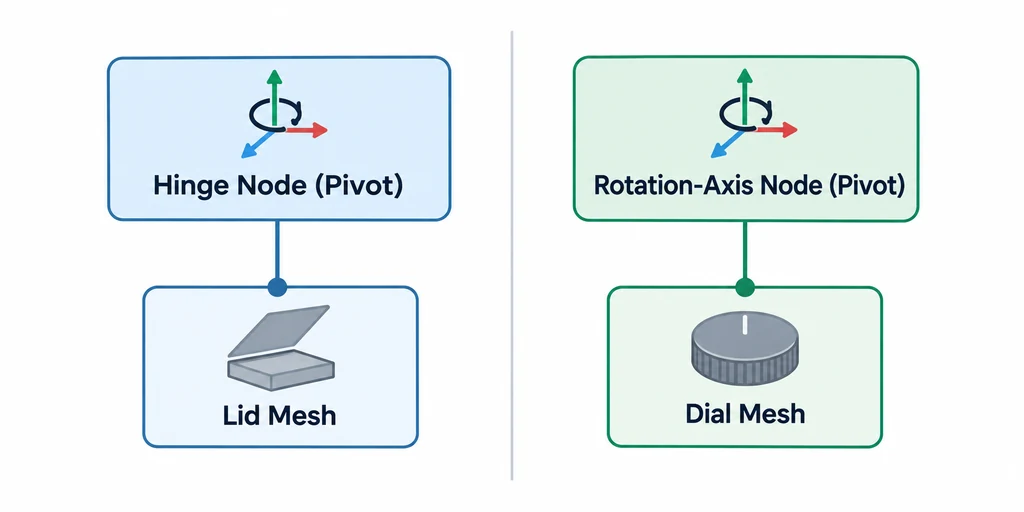
For a rigid product assembly, prefer a simple hierarchy with clear part names and clean parent-child relationships. A lid can be a child of a hinge node. A dial can be a child of a rotation-axis node. This makes the intended pivot obvious during review.
Use skins only when deformation needs joints. A soft case, fabric strap, or flexible cable may need a skin. A watch crown, drawer, chair leg, or product cover normally does not. The glTF core format includes nodes, skins, and animations as distinct top-level concepts. Khronos glTF overview
Apply transforms and scale intentionally before export. Non-uniform scale in a hierarchy can complicate a rotation or introduce unexpected results in a viewer. Test the exported GLB rather than relying only on the DCC timeline.
Export and validate each clip
Use this export checklist:
Give every customer-facing clip a clear name.
Check that the first and last frame produce the planned states.
Confirm pivots and hierarchy in the exported scene.
Confirm that transforms and morph targets animate the intended properties.
Validate the final file with the official glTF Validator.
Open every clip in the target viewer and test its trigger and reset behavior.
The official Khronos Validator checks animation inputs and outputs along with format structure and asset data. Khronos glTF Validator
Test interaction in the target viewer
An exported animation is only one part of the product experience. The web application decides when to play it, whether it can be interrupted, and what state the product returns to after interaction. Test those decisions on the target devices.
Check at least these cases: first load, replay, interrupted playback, variant change during animation, mobile orientation change, and return to the default camera. Record issues against the asset version and the viewer version. This separates asset fixes from application logic fixes.