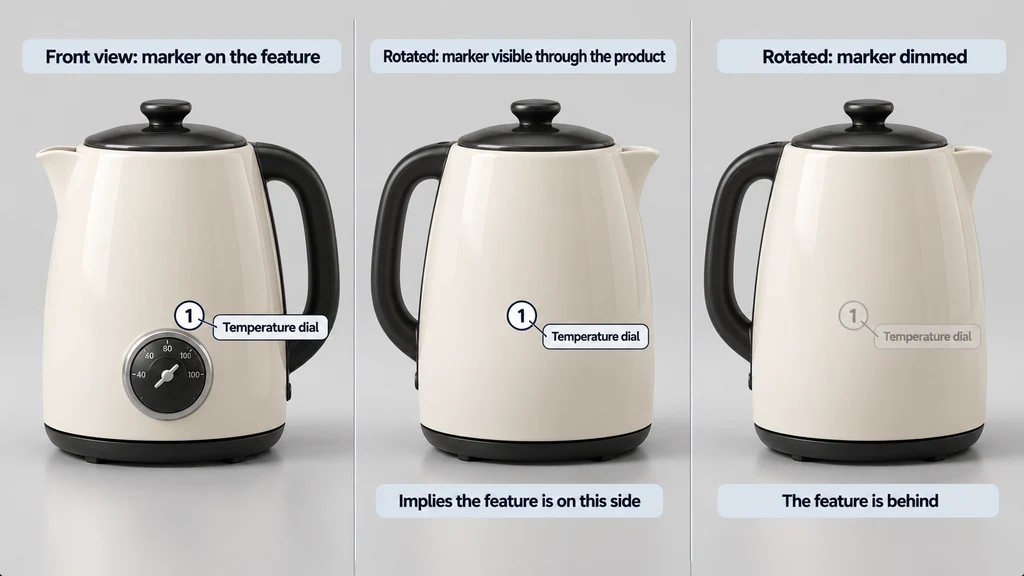
Separate the information from its visual marker. The product fact should remain available when the marker is hidden, crowded, or unavailable in an AR destination.
Choose an anchor that follows the intended feature
Identify the component and the point or surface location the annotation describes. The model-viewer annotation examples show supported anchoring approaches. Use the mechanism appropriate to the asset and component version.
For a moving part, test the anchor across the motion. A fixed point in the original model coordinates may not remain attached to a deformed or repositioned surface.
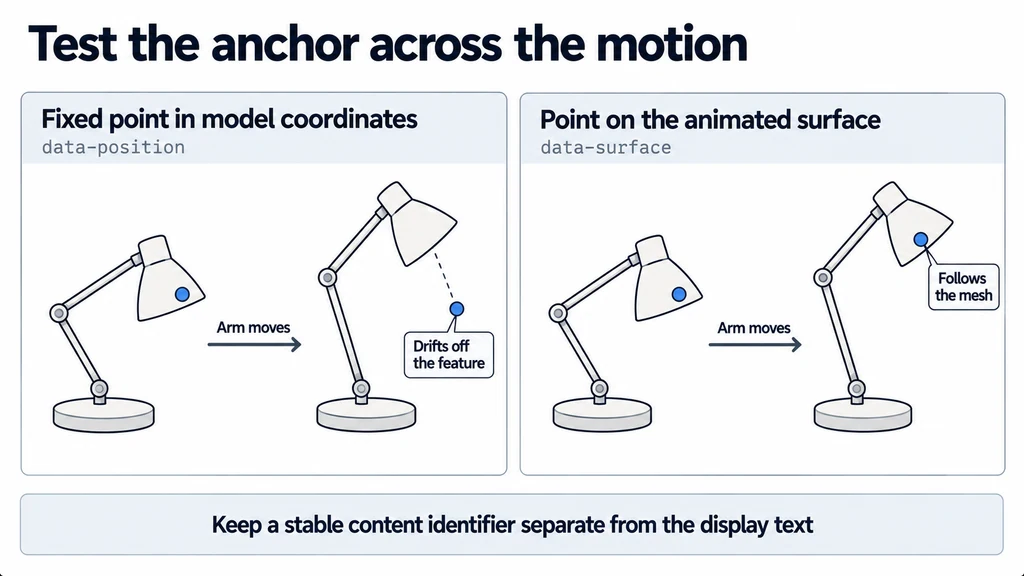
Keep a stable content identifier separate from the display text. Product revisions and translations should not require guessing which component a label referred to.
Handle visibility deliberately
Rotate the product until the annotated region is behind it. Decide whether the marker should hide, dim, or remain available in a separate list. A marker visible through the product can imply that a feature is on the wrong side.
Check overlapping markers on small screens. Prioritize the currently relevant information or provide a list rather than filling the model with competing labels.
Review line placement and text length at the actual viewer size. Do not assume a layout that works on desktop remains usable in a narrow panel.
Make the information usable without dragging
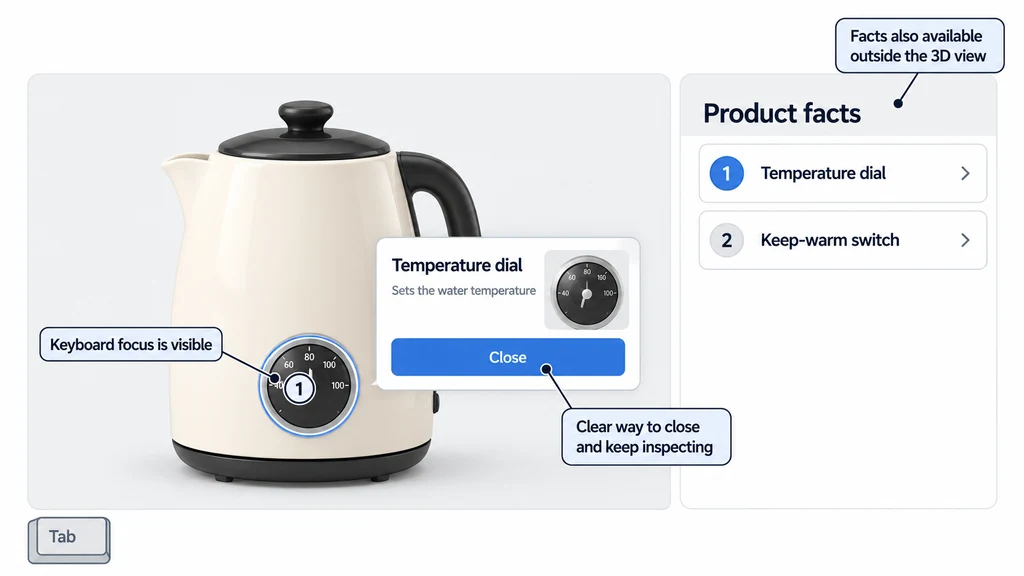
Provide keyboard-operable controls and visible focus where hotspots are interactive. The W3C keyboard guidance supplies the relevant accessibility principle.
Give the control a meaningful name. Opening a detail panel should preserve a clear way to close it and continue inspecting the product. Do not require a precise pointer gesture as the only route to important information.
Keep the text available outside the 3D view when it is necessary to understand the product. The annotation is a presentation method, not the only authoritative copy.
Test one annotation through its full journey
Choose a feature on a moving lid. Rotate the product, open the lid, and inspect the point from behind. A static model-space coordinate can remain at the assembled position while the lid moves away. Use the component's supported surface-anchor mechanism or update the anchor from the part's current transform.
Visibility also needs a policy. A facing-direction test can hide a back-facing marker, but it is not a general geometric occlusion test. Verify what the chosen component actually implements before calling the behavior occlusion.
Then launch the intended AR mode. A DOM label belongs to the web page and does not automatically become part of a USDZ or GLB handed to an external application. Keep its information in an accessible page summary and verify the return journey. If the AR destination supports a separate annotation system, author and test that representation explicitly.
Plan the AR information boundary
Check the actual AR mode. Browser overlays and an external AR application do not share the same interface automatically. Do not promise that a DOM-based hotspot will accompany a downloaded model.
Provide an approved alternative when annotations cannot transfer, such as a feature summary before launch or a return path to the product details. Avoid baking essential text into tiny geometry merely to keep it inside the file.
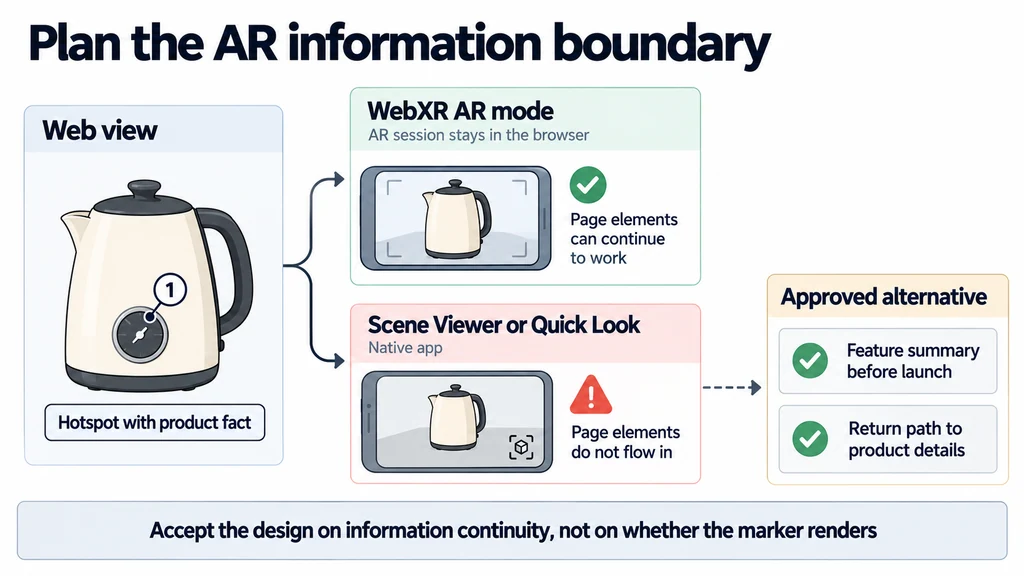
Test the entire journey with one important feature. Confirm that the user can find its explanation in the web view, understand what changes during AR launch, and return without losing the selected context. Accept the design based on information continuity, not only on whether the marker renders.