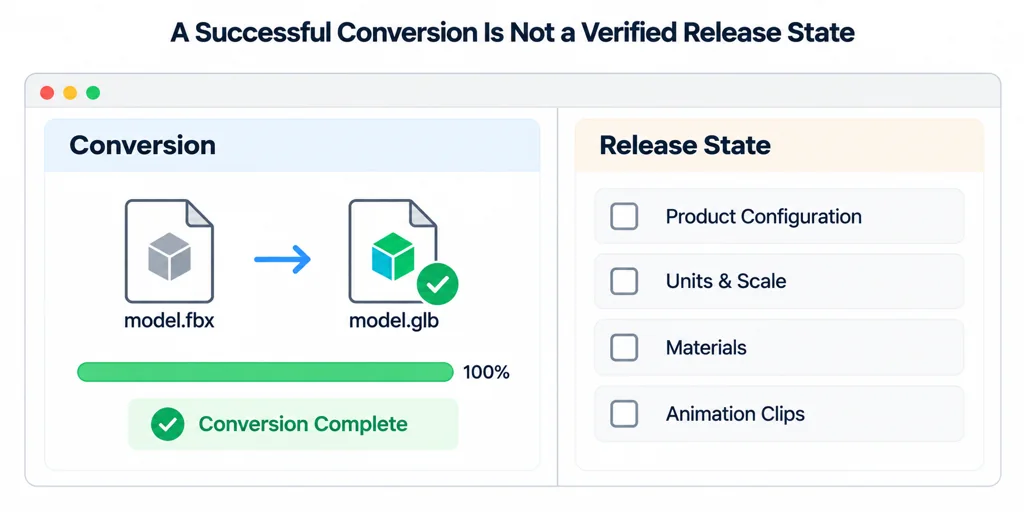
Start with the release state, not the conversion button
Choose the exact product configuration that the web page will show. Record its version, units, visible accessories, material references, and any animation that belongs in the release. FBX is a source format. A successful import does not prove that the converted asset has the intended product state.
Three.js documents FBXLoader as a loader for FBX, while glTF is a runtime delivery format. Treat the conversion as a handoff between those roles, then test the final GLB in the same viewer path that will be shipped.
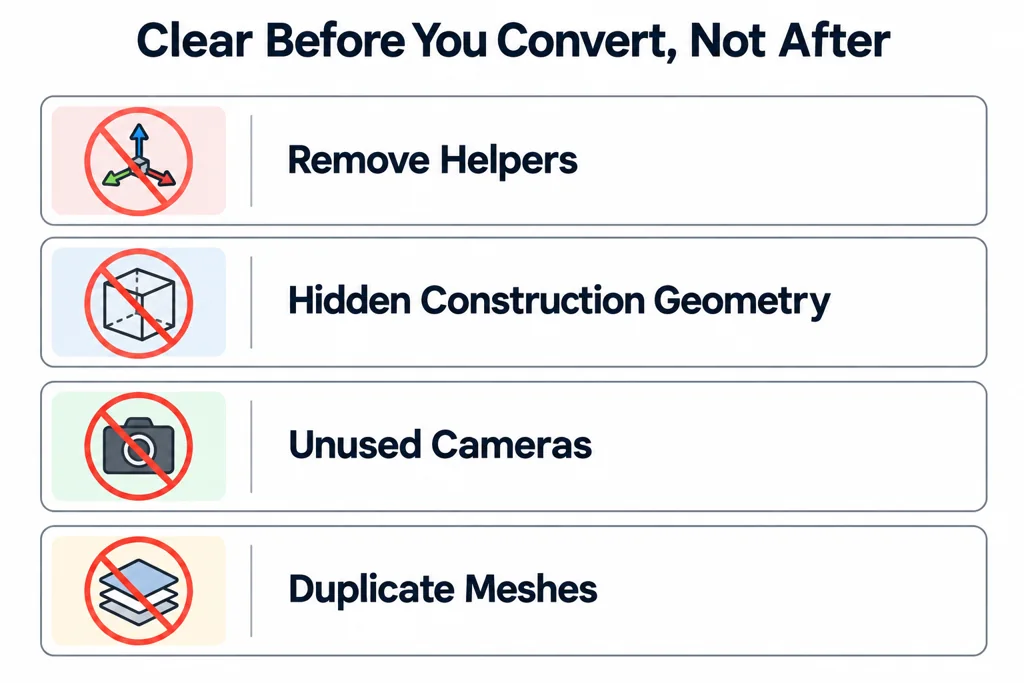
Clean the scene before export
Remove helpers, hidden construction geometry, unused cameras, and duplicate meshes that do not belong in delivery. Check object names and hierarchy before flattening or merging anything. A simple scene graph helps a web team identify parts, apply variants, and debug transforms.
Confirm units and ground contact. If the source uses a different unit convention, make the conversion decision once and verify it with a known real-world dimension. Do not fix scale by eye after the model reaches the viewer.
Rebuild material intent for glTF
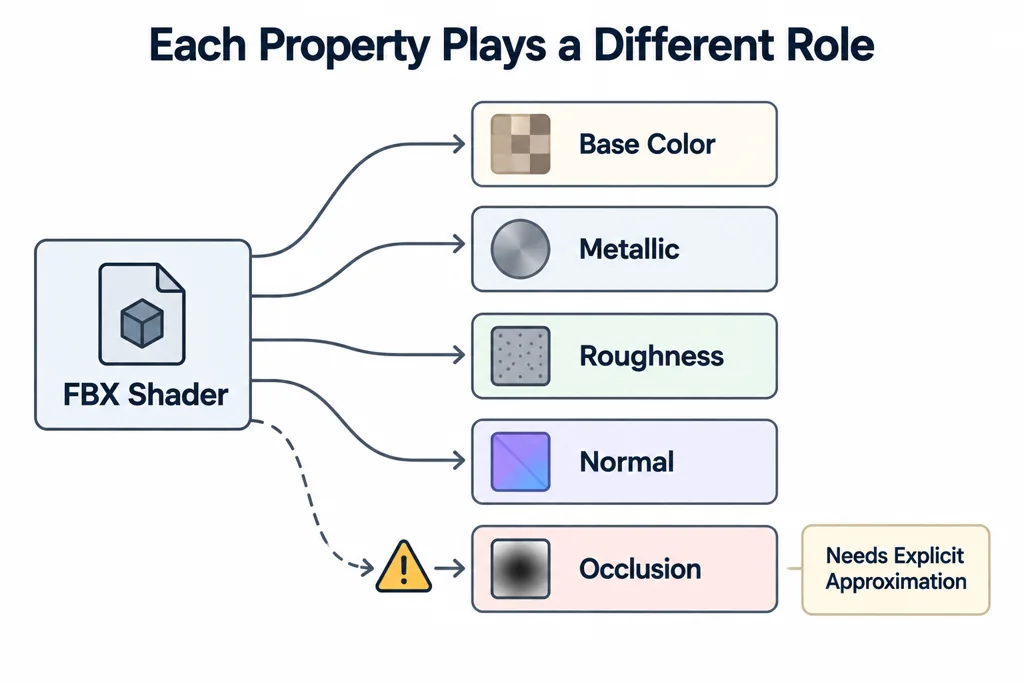
glTF uses a metallic-roughness material model. Review each FBX material against the target PBR workflow. Base color, metallic, roughness, normal, and occlusion data have different roles. A layered or renderer-specific FBX shader may need an explicit approximation rather than an automatic translation.
Keep source textures with the conversion record. Then inspect the GLB under the target lighting. A material can look acceptable in a DCC viewport but read incorrectly in a browser because the lighting, color management, or shader model changed.
Treat animation as a separate acceptance check
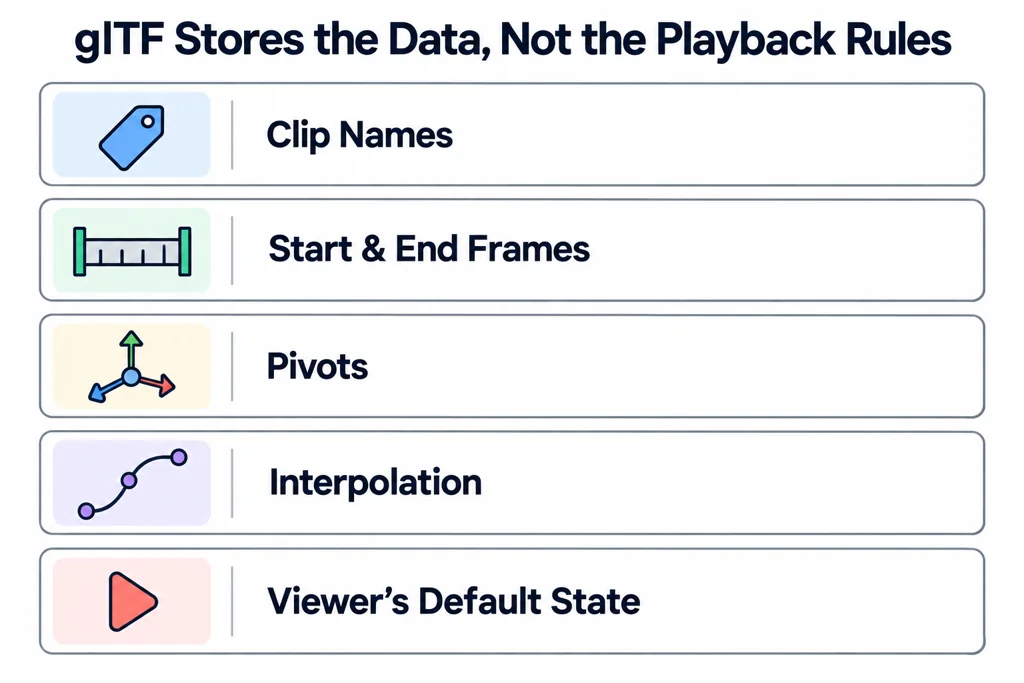
If the release contains animation, decide which clips belong in the GLB and what the viewer will do with them. glTF stores animation data but does not prescribe playback behavior. Verify clip names, start and end frames, pivots, interpolation, and the viewer's expected default state.
Check the conversion assumptions explicitly
| Source issue | GLB acceptance check |
|---|---|
| FBX unit metadata and importer scaling | Confirm a known dimension in meters after export. |
| Layered or renderer-specific shader | Rebuild or document an approved PBR approximation. |
| Animation takes or tracks | Verify the intended exported clips, pivots, and default state. |
| External images | Confirm the output's actual image resources and material assignments. |
FBX workflows often involve centimeter-to-meter conversion, but inspect the file metadata and importer behavior rather than applying 0.01 to every asset. A root scale can be a deliberate conversion transform. Applying another correction without measuring can introduce a second unit error.
For animated assets, inspect the exporter settings that determine how actions or tracks become clips. Test the beginning, ending, and an intermediate pose in the receiving viewer. A valid static default pose does not establish that motion survived.
Validate the GLB where it will be used
Run a structural validator and open the exported GLB in the target viewer. Check geometry, texture loading, material response, scale, camera framing, and animation. Then record any required loader configuration or unsupported source feature. A smaller file is useful only if the target viewer still represents the approved product.