
Noise reduction can make an image look finished while quietly removing information. Fine engraving, woven texture and subtle roughness patterns are especially useful places to inspect. This 3D Vision Art process note treats a clean surface and a faithful surface as two checks that need to agree.
Keep the untreated render
Save the noisy output before processing it. Select a few important regions, such as a logo, seam, textured finish and reflective edge. Compare them with a cleaner render made under the same camera and lighting conditions.
There is no sample count that guarantees the same result for every scene. If the comparison still contains unresolved noise, treat it as a candidate rather than a perfect reference.
Give the denoiser useful inputs
In Blender, the compositor Denoise node can use normal and albedo inputs alongside the image. Use the denoising data appropriate to the render workflow and Blender version. Do not substitute an arbitrarily color-graded beauty image for the intended auxiliary data.
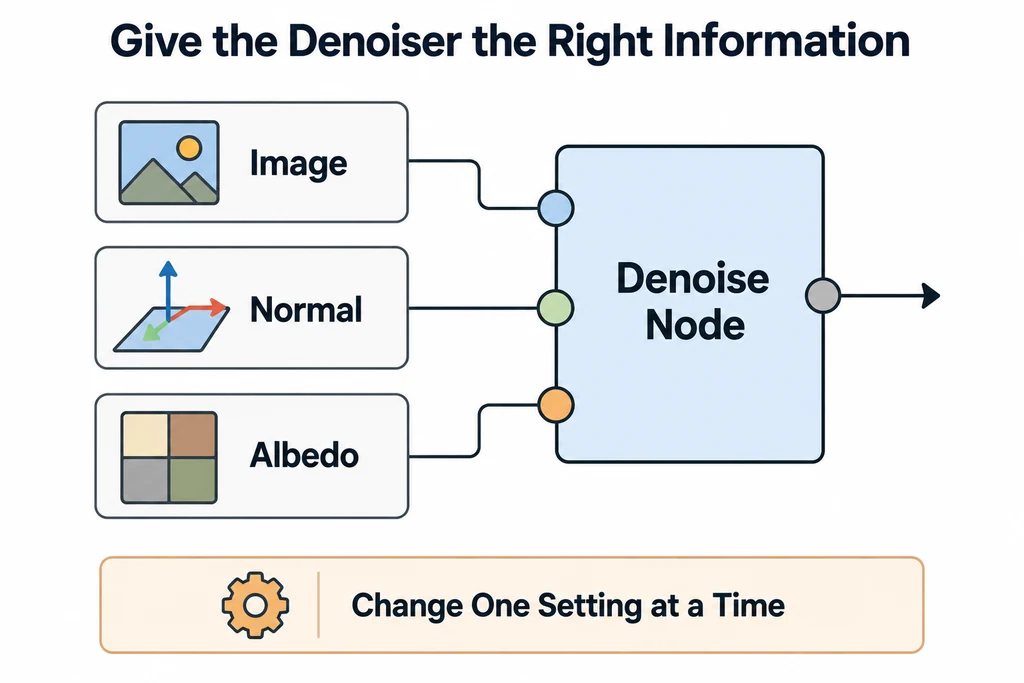
Keep the settings with the comparison and change one variable at a time. If the source does not resolve a feature consistently, additional sampling may be more useful than stronger processing.
Connect the auxiliary passes deliberately
For a Cycles compositor workflow, enable Denoising Data in the View Layer's pass settings. Connect the unprocessed image to the Denoise node's Image input, Denoising Albedo to Albedo, and Denoising Normal to Normal. Use the outputs provided by the Blender version in the project.
These auxiliary inputs help guide the denoiser; they do not guarantee preservation of a feature the render has not resolved. Keep a raw render and an independently cleaner comparison. Avoid denoising an already denoised result without a reason, because repeated processing can obscure the source of detail loss.
For an engraved logo, retain identical crops from the raw, denoised, and cleaner-reference images. Compare the letter corners and interior gaps. For animation, follow that same region across neighboring frames and at playback speed. A clean still does not establish temporal stability, and per-frame denoising should not be described as a guaranteed temporal solution.
Look for what disappeared
Review at the intended output size, then enlarge a crop to locate defects. Check lettering for rounded corners, surfaces for missing grain and contrast boundaries for halos. Follow the same mark through each candidate.
Sharpening can make an edge look stronger without recovering the original detail. If processing changes the material's character, return to the input render or denoising setup instead of hiding the loss.
Review a sequence in motion
For animation, inspect consecutive frames at normal playback speed. A still frame can look clean while small features fluctuate as reflections move. Pay attention to regions that shrink, rotate or pass through bright highlights.
Choose settings for the conditions actually tested. Keep both the untreated output and the comparison crops so later revisions can be judged against the same detail requirements.